

Update immediately if the release notes mention a security fix or a critical bug patch. If the update is feature only, or the notes hint at consumable changes, test it on a spare device first or delay. Before doing anything, print a configuration page to record your current firmware version, then check the manufacturer’s release notes, or ask Global Office Machines about a managed update.
TL;DR:
- Always verify your current firmware version by printing a configuration page or checking the embedded web server before updating.
- Use wired connections like USB or Ethernet for firmware updates whenever possible to reduce the risk of interruptions.
- Back up your printer settings and clear the print queue prior to updating to prevent data loss and minimize downtime.
- Confirm the firmware file’s integrity through checksums and ensure it’s official, signed, and specific to your printer model to avoid corruption or compatibility issues.
- For multiple devices, managed rollout tools are recommended to schedule updates, verify success, and protect overall operational uptime.
Table of Contents
- How do I check my printer’s current firmware version?
- Supported update methods and how to use each one
- Pre-update checklist before you press install
- What to do when a firmware update fails or stalls
- The real risks: signed firmware, cartridge changes and when to hold off
- How to change or disable automatic firmware updates
- How to back up your printer’s settings before updating
- How to verify a firmware update is genuine before installing it
- Does a firmware update affect your printer’s warranty?
- Can you roll back a firmware update if something goes wrong?
- What do common firmware update error codes mean?
- When should you handle updates yourself, and when should you call in help?
- Managed firmware updates and consumables through Global Office Machines
How do I check my printer’s current firmware version?
You can’t judge whether an update is worth the risk until you know what you’re running now and what the vendor actually changed. That starts with a simple printout, not guesswork.
- Print a configuration or status page. Every business printer has this buried in the control panel menu, usually under Reports or Device Information, and it lists the firmware version alongside the model and serial number.
- Check the Embedded Web Server (EWS). Type the printer’s IP address into a browser, log in, and look for the firmware or “device information” tab. This is usually faster than digging through the physical panel menu.
- Find the manufacturer’s release notes. Search the support site by exact model number and compare the version listed there against what your configuration page just showed you.
HP’s own support documentation recommends printing that configuration page both before and after an update, so you have a clean before-and-after record if something goes wrong. Read the release notes properly. A one-line “bug fixes” entry means something different to a page listing a specific vulnerability patch, and that difference should drive your decision.
Supported update methods and how to use each one
Most printers give you four ways in. Which one suits you depends on how many devices you’re managing and how comfortable you are poking around a web interface.
- Control panel or EWS upload. Best for a single office printer already on your network. Download the firmware file from the manufacturer’s site, log into the EWS, find the firmware update section, upload the file, and wait for the device to restart on its own. Don’t touch it mid-reboot.
- Vendor updater utility. HP, Epson, and most major brands ship a desktop tool that scans for connected printers and offers updates automatically. On Windows, run it as Administrator. On macOS, Epson’s Software Updater sits under Applications > Epson Software and walks through the same process with slightly different prompts. Either way, select your exact device from the list before hitting update. Never assume the first match is correct if you run more than one printer on the same network.
-
USB or flash drive. Useful when the printer has no network access or you don’t trust the Wi-Fi connection. Copy the firmware file, usually a
.bdl,.rfu, or.fulfile depending on the brand, onto a clean USB drive, plug it into the printer’s port, and follow the on-screen prompt. Double-check the file extension matches what the vendor’s instructions expect. - Enterprise tools like Web Jetadmin. If you’re managing a fleet rather than one machine, tools like HP’s Web Jetadmin let an administrator stage updates, schedule them after hours, and roll them out in batches rather than device by device.
Pro Tip: Never start a firmware update over Wi‑Fi if you can plug in a USB or Ethernet cable instead. A dropped wireless connection mid‑flash is one of the most common causes of a printer that won’t boot afterwards.
Pre-update checklist before you press install
A firmware flash that gets interrupted halfway through is the single most common way a printer ends up unresponsive. Most of that risk comes down to four things you can control in under ten minutes.
- Power stability. Plug into a stable mains outlet, and if the device sits somewhere critical to daily operations, run it through a UPS. Also disable any sleep or power-saving schedule that might kick in mid-update.
- Wired connection. USB or Ethernet substantially cuts the risk of a mid-transfer interruption compared with Wi-Fi, and it avoids a chunk of the signature verification failures that come from a corrupted transfer.
- Back up your settings. Export the address book and network configuration from the EWS if that option exists on your model. It takes two minutes and saves hours if the update wipes local settings.
- Clear the queue. Close any pending print jobs, stop scheduled print tasks, and run the updater utility as Administrator so it isn’t fighting for device access with another process.
Skipping any one of these is usually fine. Skipping all four at once is how a straightforward ten-minute update turns into a half-day outage.
What to do when a firmware update fails or stalls
Failed updates fall into a handful of predictable categories, and most have a straightforward fix if you catch them early.
- Signature verification failed. Usually means the file doesn’t match the printer’s exact model or region, or the download got corrupted partway through. A checksum check (SHA-256 or MD5) against the value listed on the vendor’s download page confirms whether the file itself is the problem before you try anything else.
- Update stuck or frozen. Don’t power cycle immediately. Give it several minutes, since some flashes genuinely take longer than the progress bar suggests. If it’s still frozen after that, retry over a wired USB or Ethernet connection rather than Wi-Fi, and make sure no other printer utility is running in the background competing for the same connection.
- Invalid or corrupt file. Redownload from the official page rather than a cached copy, and confirm the file extension matches what the model expects.
- Printer unresponsive after the attempt. This is a soft brick, not necessarily a dead device. Most vendors have a dedicated recovery or bootloader mode, entered with a specific button combination on startup, that lets you reflash a clean file. A full factory reset is the last resort, and only after you’ve backed up whatever settings you can still access.
One thing worth knowing before you go down this path: many vendors block firmware downgrades entirely once a device has been updated past a certain version. Plan your update timing with that limitation in mind rather than assuming you can simply roll back if something feels off.
The real risks: signed firmware, cartridge changes and when to hold off
Signed firmware exists to stop unauthorised or modified images from running on the device, which is genuinely good for security but does mean you can’t just reinstall an older version once you’ve moved past it. That trade off is worth understanding before you update, not after.
The clearest real-world example: Ars Technica reported that an HP firmware update (version 20250209) coincided with print failures and cartridge errors on some LaserJet models. If you rely on aftermarket or compatible toner cartridges, read the release notes closely for any mention of cartridge authentication changes before installing. Test on a spare device first, or delay if the update is optional. When the update patches a genuine security hole, install it anyway and manage the cartridge risk separately, whether that means keeping a spare device on hand or budgeting for genuine cartridges on that machine going forward.
How to change or disable automatic firmware updates
Automatic updates are convenient for a home printer and a liability for a small office running a handful of machines on tight schedules. Most business-grade devices let you turn the setting off or at least delay it.
On the control panel, look under Administration or General Settings, then Firmware Update, where you’ll usually find options like “Automatically download and install,” “Notify only,” or “Off.” The exact wording varies by brand, but nearly every business model built in the last several years offers some version of this menu.
Through the EWS, the same setting typically sits under a Device Information or Update tab, and it’s often more detailed than the physical panel version, letting you set a specific check schedule rather than a blunt on/off toggle.
If you’re managing more than a couple of devices, a fleet tool like Web Jetadmin lets an administrator disable automatic updates network-wide and instead push tested firmware on a schedule that suits the business, rather than whatever the manufacturer’s server decides overnight.
The safest default for a small business is “notify, don’t auto-install.” That way, nothing changes without someone actually reading the release notes first, and you avoid the scenario where a machine updates itself overnight and greets your receptionist with an unexpected error message the next morning. If you do want full automation, it’s a reasonable choice for a single low-stakes home printer where downtime doesn’t cost you anything.
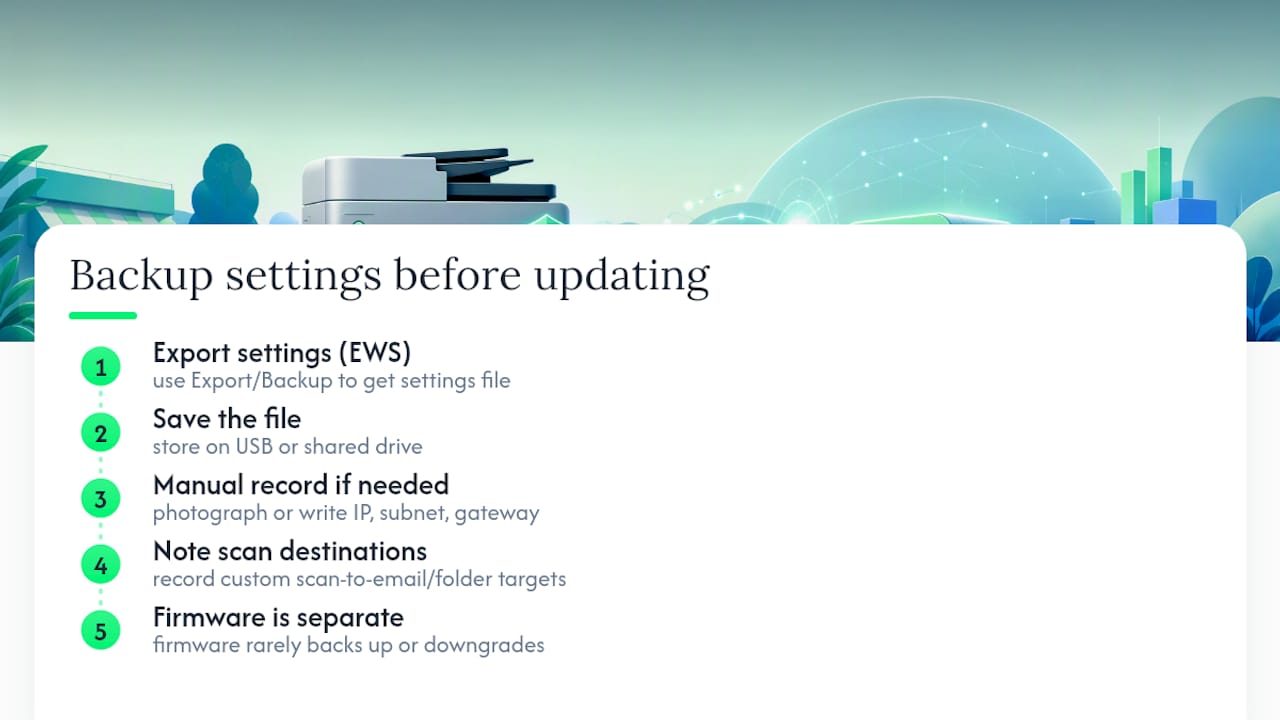
How to back up your printer’s settings before updating
Firmware updates occasionally reset network configuration, address books, and stored fax or scan destinations, so backing these up first turns a potential half-day recovery job into a two-minute re-import.
Most business printers with an EWS interface offer a settings export function, often under Backup and Restore or Device Configuration. This exports a file containing your network settings, address book entries, and sometimes the security configuration, which you can store on a shared drive or USB stick.
If your model doesn’t offer a formal export, take the manual route: photograph or write down the static IP address, subnet mask, and gateway if you’ve configured one manually, and note down any custom scan-to-email or scan-to-folder destinations. It feels old-fashioned, but it works when the automated option isn’t available.
Firmware itself, as opposed to your settings, generally can’t be backed up and reinstalled the way you’d back up a document. The manufacturer’s servers hold the official firmware history, and reverting to an older version depends on whether that vendor allows downgrades at all, which brings us back to the earlier point about signed firmware limits. Treat your settings backup as the thing you can control, and treat the firmware version itself as something you can only move forward on, not something you can casually restore.
For a small office running two or three devices, this backup step takes less time than making a coffee, and it’s the difference between a five-minute reconfiguration and rebuilding your entire scan-to-folder setup from memory.
How to verify a firmware update is genuine before installing it
Only ever download firmware from the manufacturer’s own support site, searched by your exact model number, never from a third-party download aggregator or a link in an unsolicited email. This sounds obvious, but it’s the single most common way people end up flashing the wrong file, or worse, a tampered one.
Once downloaded, check the file against the checksum value (usually SHA-256 or MD5) listed on the same download page. If the checksum you calculate on your own machine doesn’t match what the vendor lists, the file is either corrupted or not what it claims to be, and you should redownload rather than proceed. Most operating systems have a built-in way to generate this value without installing extra software.
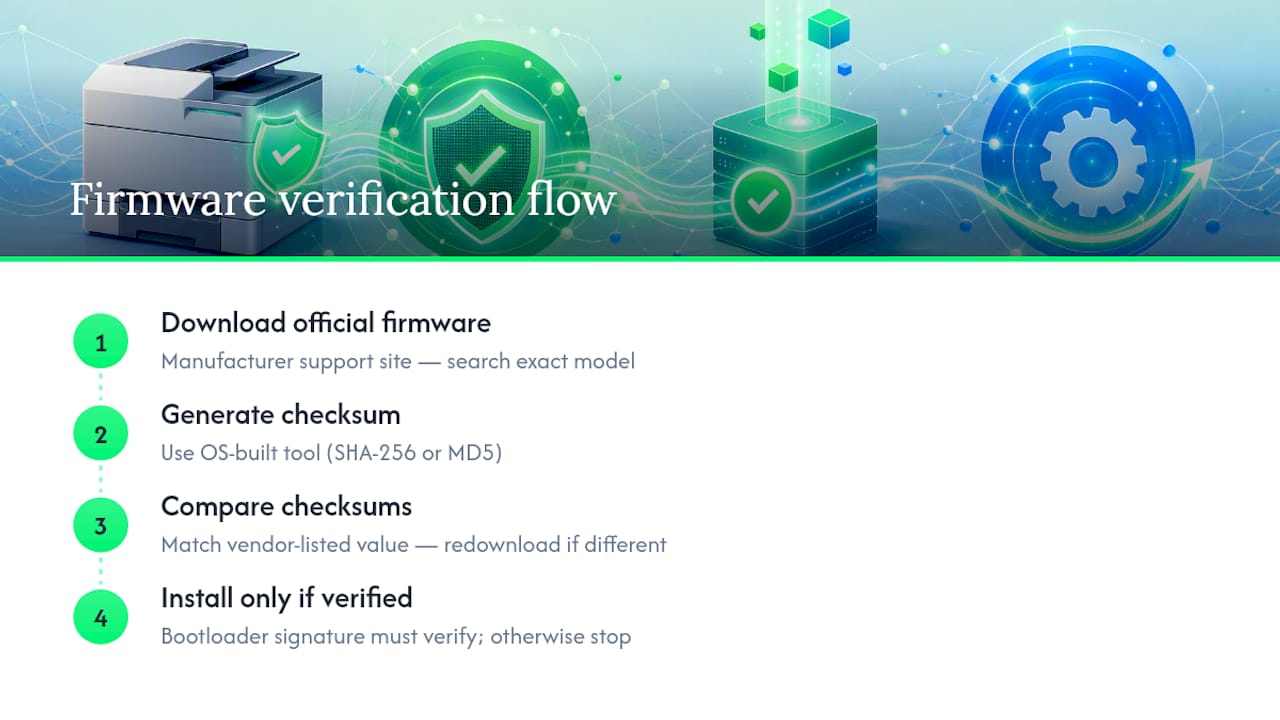
Signed firmware adds another layer on top of this. The printer’s own bootloader checks a cryptographic signature embedded in the file before it will install anything, which is what stops a modified or unauthorised firmware image from running even if someone did manage to trick you into downloading it. If a device rejects a file with a signature error, that’s the printer doing its job, not a fault to work around. It usually means the file is for the wrong model, the wrong region, or has been altered somewhere along the way, and the fix is to redownload the correct file rather than look for a workaround.
For a small business managing a handful of devices, this whole verification process takes a few extra minutes per update. Skipping it is how counterfeit or corrupted firmware ends up installed on business-critical hardware.
Does a firmware update affect your printer’s warranty?
Installing official firmware from the manufacturer’s own support page doesn’t void a standard hardware warranty. Warranty terms generally cover manufacturing defects and hardware failure, not software you’re expected to keep current as part of normal use.
Where it gets murkier is aftermarket consumables. If a firmware update changes how the printer authenticates cartridges and you’re running compatible or refilled toner, some support agents will point to the consumable itself rather than the firmware when a fault appears, particularly if the printer’s error logs flag a non-genuine cartridge. That’s a separate issue from the hardware warranty, but it can complicate a support call if you’re not prepared for the question.
Modifying firmware outside official channels, using a leaked or unofficial file, or bypassing signature checks, is where warranty support genuinely does get shaky. Manufacturers can reasonably decline to support a device that’s been flashed with something outside their own release channel, since there’s no way to verify what that file actually did to the hardware.
If you’re on a support or maintenance contract through a provider like Global Office Machines, keeping firmware updates within official vendor channels also keeps that support relationship straightforward. A device with an unclear update history is harder for any technician to diagnose quickly, official warranty or not.
Can you roll back a firmware update if something goes wrong?
Sometimes, but not always, and not indefinitely. This is worth checking before you update, not after you’ve discovered the new version doesn’t suit you.
Many manufacturers only support rolling forward. Once a device accepts a newer signed firmware version, its bootloader may refuse to accept an older signed file, treating it the same way it would treat an unsigned or tampered image. This is a direct consequence of how signed firmware protects the device: the system that stops malicious downgrades also stops legitimate ones.
Where a rollback is supported, the process usually mirrors the original update: download the specific older version from the manufacturer’s support page (never a third-party mirror), and flash it through the same EWS, USB, or vendor utility method you’d use for a forward update. Some devices need a recovery or bootloader mode entered manually to accept an older file, particularly if the current version blocks a direct downgrade through the normal interface.
The practical takeaway is to treat every update as close to permanent. Read the release notes properly, test on a spare device if you have the option, and don’t assume you can simply undo an update that turns out to cause problems. If downgrade support matters to your operation, check the manufacturer’s specific policy for your model before you update, not after.
What do common firmware update error codes mean?
Error messages during a firmware update generally fall into a handful of categories, even though the exact wording differs between brands.
A signature or verification error almost always means the file doesn’t match the device’s expected model or region, or the download is corrupted. Redownload from the official page and check the file against the vendor’s checksum value before trying again.
A connection or timeout error typically points to an unstable network path, which is exactly why a wired USB or Ethernet connection is the safer choice during any flash. If this happens repeatedly on Wi-Fi, switch to a cable rather than retrying the same wireless connection.
A file format or file type error usually means the wrong extension was selected, for example a .rfu file where the device expected a .bdl, or a file downloaded for the wrong model number entirely.
An insufficient storage or memory error is less common but does turn up on older devices with limited onboard flash. It generally means the update needs a factory reset first to clear space, which should only be attempted after backing up settings.
A generic or unresponsive failure, where the printer simply stops responding with no clear message, usually calls for the vendor’s specific recovery or bootloader procedure rather than repeated retries through the normal interface.
When should you handle updates yourself, and when should you call in help?
If you’re running one or two printers in a small office, doing the update yourself is usually fine, provided you follow the checklist: wired connection, stable power, settings backed up, release notes actually read before you click install. That’s genuinely within reach for anyone comfortable using a web browser.
The calculation changes once you’re running several devices, or once any single printer being offline for half a day actually costs you money. At that point, staged rollouts, testing on one machine before pushing to the rest, protect uptime in a way that updating everything simultaneously never does.
If you do bring in a managed provider, ask what evidence they’ll hand back: test logs, a configuration snapshot before and after, and a written version report. That’s the difference between a proper managed rollout and someone just clicking “update” on your behalf.
— Matthew
Managed firmware updates and consumables through Global Office Machines
Global Office Machines is the practical alternative to running every update yourself across a growing fleet, particularly once you’ve got more printers than spare afternoons to babysit them. Rather than one person manually checking release notes across a dozen devices, a managed rollout means someone else verifies the firmware, tests it on a spare unit, and stages the deployment so the whole office isn’t offline at once.
A booked service can include a version report before and after the update, so you’ve got a clear record if a support question ever comes up later. If a recent update has already caused cartridge errors on your machine, it’s also worth checking genuine consumables like HP #975X Black Ink rather than gambling on compatibility with an aftermarket cartridge post update. And if a device has become unreliable enough that a spare or replacement makes more sense than another repair cycle, the HP Colour LaserJet Pro M479FDW multifunction printer is a solid option to have on hand for testing updates before they touch your production fleet. Get in touch to book a firmware check or consumables order today.