

Secure your networked printers by applying these eight prioritised controls. Printers and multifunction devices (MFDs) are full network endpoints, not peripheral afterthoughts. Peer-reviewed research documents viable firmware-based attacks against networked printers. Canon Oceania’s survey data reports that a large majority of ANZ organisations experienced a print-security incident in the prior two years. The Australian ISM frames device risk management as a lifecycle process covering selection, implementation, assessment, and ongoing monitoring — and printers belong in that lifecycle.
The eight controls, in priority order:
Immediate (Week 1):
-
Isolate printers on a dedicated VLAN and restrict access with firewall rules.
-
Change all default admin credentials and disable unused accounts.
-
Apply current firmware and subscribe to vendor security advisories.
-
Enable secure-print release (PIN or card) to prevent unattended output.
-
Enforce TLS-based protocols (HTTPS, IPP over TLS, SNMPv3) and disable Telnet, FTP, and raw port 9100.
Medium-term (Month 1 and ongoing):
-
Disable all services and ports the organisation does not actively use.
-
Enable logging and route printer events to your SIEM.
-
Establish physical controls and a documented decommissioning procedure.
HP Australia’s hardening guidance and the ASD Blueprint’s printing design decisions both anchor these controls in vendor-specific and government-aligned frameworks. GOM’s managed print and onsite service teams help Australian businesses implement and maintain them.
Key Takeaways
Securing networked printers requires isolating devices on a dedicated VLAN, replacing default credentials, patching firmware regularly, enforcing encrypted protocols, and enabling secure-print release as a minimum baseline.
| Key Control | Implementation Details |
|---|---|
| Network isolation first | Place all printers on a dedicated VLAN with firewall ACLs before applying any other control. |
| Default credentials are the easiest win | Change admin passwords and disable default accounts on every device immediately after deployment. |
| Encrypted protocols only | Require HTTPS, IPP over TLS, and SNMPv3; disable Telnet, FTP, SNMPv1/v2c, and raw port 9100. |
| Secure-print release reduces data exposure | PIN or card-based release prevents sensitive documents from sitting unattended in output trays. |
| GOM for fleet implementation | GOM provides device supply, onsite servicing, managed print configuration, and documented decommissioning for Australian businesses. |
Table of Contents
-
Which protocols should you require, and which should you retire?
-
How should you manage firmware updates across your printer fleet?
-
What security features should you require when buying printers?
-
How do you log printer events and respond to a security incident?
-
An Australian reseller’s perspective on what actually goes wrong
How do you isolate printers on your network?
Isolate printers on a dedicated VLAN and restrict access with firewall rules and access control lists (ACLs). This single step removes printers from the general user broadcast domain and forces all print traffic through a defined, inspectable path.
A practical segmentation pattern puts all printers in a printer VLAN (for example, 192.168.50.0/24) and places print servers or cloud-print connectors in a separate management VLAN. User workstations reach the printer VLAN only on the ports they need. The firewall permits nothing else inbound to that segment.
For organisations using identity-based cloud printing, Microsoft Universal Print routes jobs through Azure AD identity rather than a local print server, which shifts the trust boundary from the network to the identity plane. That trade-off suits environments already running Microsoft 365 with Entra ID, but it introduces cloud-connector traffic you need to explicitly permit and monitor.
Pro Tip: Before deploying any cloud print connector, validate data residency. Australian government and regulated-sector organisations should confirm that print metadata and job data remain in Australian Azure regions, not offshore.
How do you lock down admin access to printers?
Remove default accounts and enforce unique admin credentials with least privilege and ACLs. Default credentials on printers are publicly documented and routinely exploited. Changing them takes five minutes per device and eliminates one of the most common attack vectors.
Step-by-step:
-
Log into the device’s web admin console using the current default credentials.
-
Create a named admin account with a strong, unique password (16+ characters, stored in your password manager or PAM vault).
-
Delete or disable the default “admin” or “root” account entirely.
-
Restrict console access to the management VLAN IP range only — block admin UI access from user VLANs at the firewall.
-
Where the device supports RBAC, create separate roles: a read-only auditor account and a privileged admin account. Assign the privileged account only to staff who need it.
-
For devices that support LDAP over SSL or SAML, integrate with Active Directory or Entra ID so admin authentication uses your existing MFA and identity governance controls.
-
Document every account, its role, and its access scope in your asset register.
Local accounts are still appropriate for devices that cannot integrate with your directory, or as break-glass credentials stored in a sealed envelope in a physically secured location. Cloud-connector admin accounts for services like Universal Print should be governed by Entra ID Privileged Identity Management (PIM) where available.
Pro Tip: For vendor support visits, create a time-limited local account with a randomly generated password. Disable it immediately after the service call ends. Never hand a vendor your primary admin credentials.
Which protocols should you require, and which should you retire?
Enforce TLS-based protocols for admin and print traffic and retire legacy plaintext protocols. Every plaintext protocol on a printer is a credential-harvesting opportunity for anyone with access to the network segment.
| Protocol | Status | Notes |
|---|---|---|
| HTTPS (TLS 1.2+) | Required | Admin console access; disable HTTP redirect |
| IPP over TLS | Required | Encrypted print job submission |
| SNMPv3 (auth + privacy) | Required | Device monitoring; use AES-128 minimum |
| LDAP over SSL (LDAPS) | Required | Directory authentication for user access |
| Telnet | Disable | Plaintext; no legitimate use case |
| FTP | Disable | Plaintext file transfer; replace with SFTP or HTTPS |
| SNMPv1 / SNMPv2c | Disable | Community strings are plaintext; trivially sniffed |
| Raw TCP port 9100 | Disable unless required | Unencrypted print stream; disable if IPP/TLS is available |
| HTTP | Disable | Redirect to HTTPS or disable entirely |
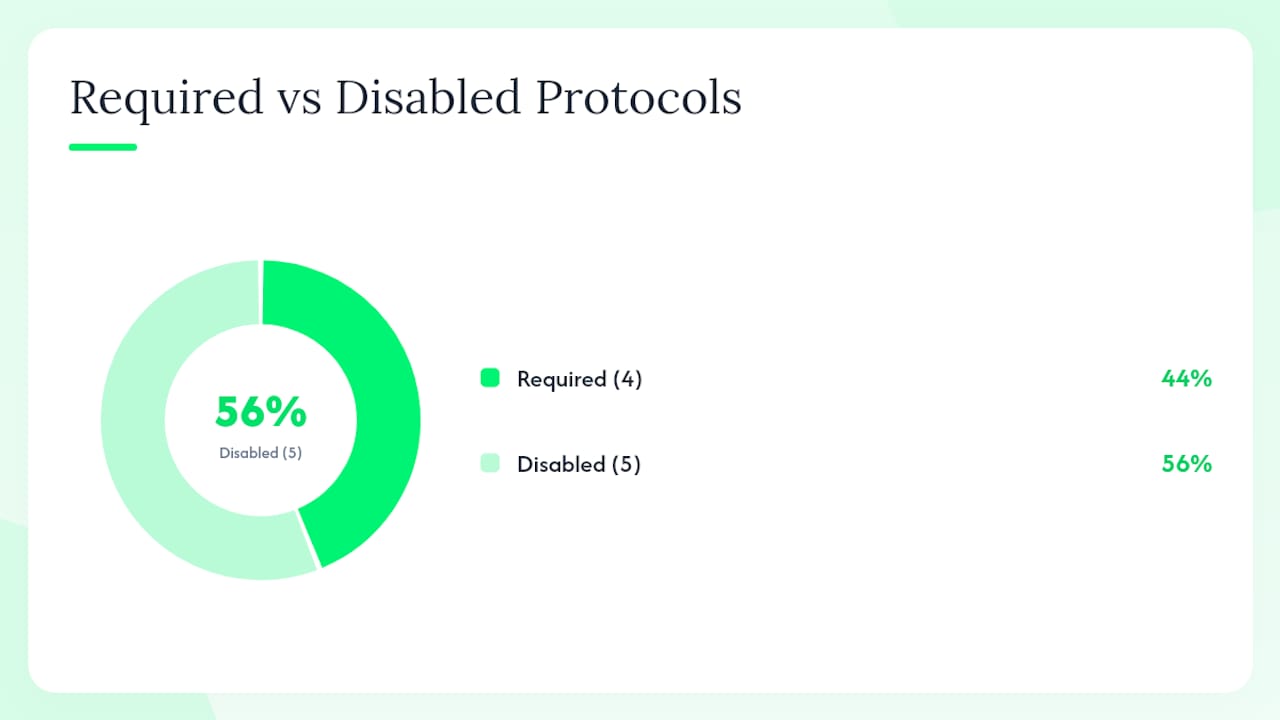
Enabling IPP over TLS typically requires generating or importing a device certificate. For managed fleets, push certificates from your internal CA or use a vendor-managed certificate service. SNMPv3 requires configuring an authentication protocol (SHA-256 preferred over MD5) and a privacy protocol (AES-128 minimum). Both settings live in the device’s network or security configuration page.
Certificate management is where this often breaks down in practice. Self-signed certificates expire silently, and many IT teams discover the problem only when the admin console throws a browser warning. Set calendar reminders 30 days before expiry, or use your monitoring platform to alert on certificate age.
-
Confirm TLS version: reject TLS 1.0 and 1.1; accept TLS 1.2 and 1.3 only.
-
Verify SNMPv3 engine ID and trap destinations after any firmware update.
-
Audit LDAP authentication settings after any Active Directory domain change.
ACM research on embedded device vulnerabilities confirms that protocol-level weaknesses in networked devices remain a practical exploitation path, not just a theoretical concern.
What services and ports should you turn off?
Turn off every service the organisation does not actively use and validate the impact in a staging environment before rolling changes to production. Printers ship with a wide range of services enabled by default, most of which your environment will never need.
Services commonly safe to disable:
-
Telnet and FTP — Plaintext management and file transfer; no modern use case justifies them.
-
SLP (Service Location Protocol) — Used for automatic printer discovery; disable if printers are statically assigned and discovery is managed centrally.
-
Bonjour / mDNS — Useful for home networks; in a segmented enterprise VLAN it creates unnecessary broadcast traffic and discovery exposure.
-
UPnP — Automatic port-forwarding capability; disable on all enterprise devices without exception.
-
WSD (Web Services on Devices) — Windows auto-discovery; disable if you manage printer assignments through GPO or a print server.
-
Unused print protocols — LPD/LPR, IPP without TLS, raw port 9100 where IPP/TLS is available.
-
Remote firmware update via USB or unauthenticated HTTP — Replace with authenticated, vendor-signed update channels only.
Before disabling anything in production, test on a single device in a staging VLAN. Print a test page, confirm scan-to-email and scan-to-folder still work, and verify that your monitoring platform still receives SNMP traps. Document the before-state so you can roll back cleanly if a workflow breaks.
Pro Tip: Run a port scan (using a tool like Nmap) against the device before and after disabling services. Compare the output. Any port still open that you expected to close means the setting did not apply — check whether the device requires a reboot to commit the change.
How should you manage firmware updates across your printer fleet?
Maintain an inventory and apply vendor firmware and security patches from official sources on a regular schedule. Outdated firmware is one of the three most common misconfigurations seen across Australian business printer fleets, alongside default credentials and open network access.
Patch management checklist:
-
Build a device inventory. Record make, model, serial number, firmware version, IP address, and VLAN for every printer and MFD. A spreadsheet works; an endpoint management platform works better.
-
Establish a firmware baseline. Note the current version on each device and compare it against the vendor’s latest release page.
-
Subscribe to vendor security advisories. HP, Canon, and Epson all publish security bulletins. Map those to your maintenance calendar so patches don’t sit unread in an inbox.
-
Stage before deploying. Test firmware updates on one device per model before pushing fleet-wide. Confirm that all workflows (print, scan, fax, email) function correctly post-update.
-
Schedule deployment. Push updates during a maintenance window, not ad hoc. Document the version deployed, the date, and who approved it.
-
Verify and record. After deployment, confirm the firmware version on each device and update your inventory. Retain records for audit purposes.
Pro Tip: Map CVE identifiers from vendor advisories to your patch windows. If a critical CVE drops between scheduled windows, treat it as an emergency change — don’t wait for the next maintenance cycle.
-
Use network scanning tools to detect devices running outdated firmware versions.
-
Automate inventory updates where your endpoint management platform supports printer SNMP polling.
-
Never download firmware from third-party sites; use only the vendor’s official support portal.
HP Australia’s hardening guide explicitly recommends applying firmware updates from official vendor sites as a core security control.
How do secure-print workflows prevent document exposure?
Use secure-release (pull print) or identity-based cloud spooling to prevent sensitive documents from sitting unattended in an output tray. A print job released to a tray before the user reaches the device is a data-loss event waiting to happen.
Implementation options:
-
PIN release — User enters a PIN at the device panel before the job prints; low cost, works on most modern MFDs.
-
Proximity card readers — User taps an access card; faster than PIN, integrates with physical access control systems.
-
SSO integration — User authenticates at the device using their Active Directory or Entra ID credentials; ties print release to your existing identity governance.
-
Managed print server with secure spooling — Jobs held on the server until the user authenticates at any enrolled device; supports follow-me printing across multiple locations.
-
Microsoft Universal Print — Identity-forward cloud spooling through Entra ID; the ASD Blueprint recommends it as a managed allocation option for organisations already in the Microsoft 365 ecosystem.
Operationally, set a queue retention policy. Jobs not released within a defined window (commonly 4–8 hours) should be automatically deleted, not held indefinitely. Train users on this behaviour during rollout — the most common complaint is “my job disappeared,” which is the feature working correctly.
Print-job encryption during spooling matters too. Confirm that the spool path (workstation to print server, or workstation to cloud connector) uses TLS, not a plaintext SMB share.
Pro Tip: Evaluate virtual printing in remote desktop configurations carefully. In high-security environments, cyber.gov.au recommends disabling virtual printing in remote session configs to remove a common exfiltration channel.
What security features should you require when buying printers?
Require firmware signing and secure update support, secure-boot or device attestation, and vendor transparency in procurement contracts. The security posture of a printer fleet is largely set at procurement — retrofitting controls onto devices that don’t support them is expensive and often impossible.
Procurement checklist:
-
Firmware signed by the vendor and verified at boot (secure boot/device attestation)
-
Documented firmware update policy: frequency, support window, and end-of-life date
-
Support for secure-print release (PIN, card reader, SSO/AD integration)
-
Encrypted transmission support: IPP over TLS, HTTPS admin console, SNMPv3
-
Authentication options: local PIN, proximity card, LDAP/AD integration, SAML/SSO
-
Remote management security: role-based access, audit logging, no unauthenticated cloud connectors
-
Published security advisory process and CVE disclosure history
-
Data residency commitments for any cloud-connected features
Questions to ask vendors before signing:
-
What is your SLA for releasing security patches after a CVE is disclosed?
-
How do you notify customers of vulnerabilities affecting their model?
-
Where is print metadata and job data stored when using your cloud connector?
-
What sanitisation documentation do you provide at device decommission?
-
Is firmware update delivery authenticated and integrity-verified?
Supply-chain decisions made at procurement affect patching and decommissioning years later. A device from a vendor with a poor advisory track record will accumulate unpatched CVEs. Canon’s security solutions documentation covers encrypted transmission, audit logs, and hard-drive sanitisation as baseline device-level expectations — use that as a reference point when evaluating other vendors.
How do you log printer events and respond to a security incident?
Log admin access, configuration changes, print-job submission and release, and authentication failures, then route those logs to your SIEM. Printers generate security-relevant events continuously; the problem is that most organisations never collect them.
Events to collect:
-
Admin login attempts (successful and failed)
-
Firmware update events (version, timestamp, source)
-
Configuration changes (network settings, protocol changes, account changes)
-
Print-job submission and release (user, device, timestamp, job size)
-
Authentication failures at the device panel
-
Unusual outbound network connections from the printer VLAN
-
SNMP trap events (device errors, reboot events)
SIEM integration steps:
-
Enable syslog forwarding on each device; point it to your SIEM collector or log aggregator.
-
Configure SNMP traps to send to your network monitoring platform.
-
Set log retention to align with your organisational policy (the ISM recommends retaining logs for at least 7 years for some classifications; confirm the applicable requirement for your environment).
-
Create alerting rules for high-priority events: multiple failed authentications, firmware changes outside maintenance windows, and admin logins from unexpected IP addresses.
Incident response steps when a printer is compromised:
-
Isolate the device immediately — move it to a quarantine VLAN or disconnect the network cable.
-
Preserve logs before any remediation action; export syslog and SNMP trap history.
-
Identify potential exfiltration paths: was the device accessible from outside the printer VLAN? Did it make outbound connections?
-
Remediate: factory-reset the device, apply current firmware from the official vendor source, and reconfigure from a known-good baseline…
-
Follow the sanitisation and decommission checklist if the device is being retired rather than returned to service…
Physical controls and secure decommissioning
Physical security and device sanitisation are as important as network controls. A printer with strong network controls but an unlocked output tray in an open corridor still leaks documents.
Physical controls:
-
Place printers in locations accessible only to authorised staff, not in public corridors or reception areas.
-
Use lockable output trays where available, particularly for devices handling sensitive documents.
-
Apply CCTV coverage to high-security print areas where proportionate.
-
Control vendor access: accompany service technicians and log their activities.
-
Secure the device’s USB and SD card ports physically (port blockers) or disable them in firmware.
Decommissioning checklist:
-
Overwrite or cryptographically erase internal storage (hard drive or flash) using the vendor’s secure-erase function.
-
If the device lacks a secure-erase function, remove and physically destroy the storage media.
-
Cyber.gov.au’s sanitisation guidance requires printing at least three pages of random text per colour cartridge to clear residual impressions from drum surfaces.
-
Destroy image transfer rollers or platens that retain visible impressions of previously printed content.
-
Remove any trapped pages from paper paths and feeders.
-
Reset the device to factory defaults and remove it from your network inventory and directory.
Pro Tip: Retain the vendor’s service and sanitisation report for every decommissioned device. Auditors and regulators increasingly ask for documented evidence of secure disposal, not just a verbal confirmation.
Your prioritised rollout checklist
Apply a short-term baseline (isolate, change defaults, patch, enable auth) and follow a 30/90-day plan to complete controls and monitoring. The checklist below is designed to be assigned directly to an IT team member.
Days 1–7 (immediate baseline):
-
Audit the network: identify every printer and MFD by IP, MAC, model, and firmware version.
-
Move all printers to a dedicated printer VLAN; apply firewall rules from the table in the network segmentation section.
-
Change all default admin credentials; create named accounts with RBAC where supported
-
Apply the latest firmware to all devices from official vendor sources.
-
Enable IPP over TLS and HTTPS admin; disable Telnet, FTP, SNMPv1/v2c, and raw port 9100.
Weeks 2–4:
-
Enable secure-print release (PIN or card) on all devices handling sensitive documents.
-
Disable unused services (SLP, Bonjour, UPnP, WSD) after staging validation.
-
Enable syslog forwarding to your SIEM; configure SNMP traps.
-
Integrate device admin authentication with Active Directory or Entra ID where supported.
-
Document physical security controls and update the asset register.
Ongoing:
-
Subscribe to vendor security advisories (HP, Canon, Epson) and map CVEs to maintenance windows.
-
Review printer logs monthly; tune SIEM alerting thresholds.
-
Conduct an annual security audit of the printer fleet aligned with the ISM risk-management lifecycle.
-
Run a cybersecurity awareness training session for staff covering secure printing behaviours and document handling.
-
Review and update the decommissioning procedure whenever a device is retired.
An Australian reseller’s perspective on what actually goes wrong
The most common printer security failures seen across Australian business clients aren’t exotic attacks. They’re default credentials still active two years after deployment, firmware three major versions behind because no one owns the update process, and printers sitting on the flat corporate network because the VLAN migration “never got scheduled.”
Procurement is where the long-term problems start. Organisations buy on price and delivery speed, then discover at renewal that the vendor has no published advisory process and the device’s firmware hasn’t been updated in 18 months. The ASD Blueprint’s recommendation to treat printers as full systems in a risk-management lifecycle is the right framing, but it only works if procurement teams ask the right questions before signing, not after.
Secure-print release is the control most organisations delay the longest. The objection is always user friction. In practice, once users understand that uncollected jobs auto-delete after a few hours, adoption is fast. The friction argument is weaker than it sounds.
Physical decommissioning is genuinely underestimated. Devices leave offices without storage being wiped, sometimes handed to staff or donated. The cyber.gov.au sanitisation requirements for MFDs are specific and non-trivial. Most organisations have never read them.
GOM helps you implement these controls end to end
Securing a printer fleet is straightforward when you have the right devices and the right support behind them. Where it breaks down is in the gap between knowing what to do and having the time, inventory data, and vendor access to do it.

GOM is a 100% Australian-owned authorised dealership and service centre, established in 1996, supplying and servicing printers, MFDs, and plotters for Australian businesses. The team handles device inventory and fleet audits, on-site firmware servicing, managed print configuration, secure-release setup, and documented decommissioning with sanitisation reports. Every technician is trained to vendor standards, and GOM stocks genuine consumables from HP, Canon, Epson, and other major brands, delivered nationwide.
If you’re ready to bring your printer fleet up to the baseline described in this guide, browse GOM’s business printer range or contact the team to book a service assessment. The GOM blog also covers printer security steps specific to Australian professional-services environments.
Sources
-
Printer security key to strengthening cybersecurity across ANZ businesses | Canon Australia
-
The Hidden Cybersecurity Risks of Printers: What You Need to Know | Insight IT
-
IEEE Xplore: paper (abstract) documenting printer-related security research
-
ACM Digital Library: paper on embedded device/printer vulnerabilities