

Mobile printing for business is a suitable, low-risk option for most Australian workplaces once secure release and encrypted print pathways are in place. The recommended move isn’t a full fleet overhaul: run a small pilot with secure release (pull printing) over IPPS/TLS on a handful of devices before wide rollout. If your IT team lacks the time to configure this properly, a managed-print partner can scope and run that pilot for you.
TL;DR:
A small pilot with secure release over IPPS/TLS should be tested before deploying mobile printing across the entire fleet to prevent configuration issues.
Supporting both AirPrint and Mopria is essential for broad device compatibility, with on-premises IPPS over TLS recommended for sensitive environments.
Enforcing TLS, secure release, and audit logging is critical for maintaining security and compliance in mobile printing implementations.
Device selection should match each job type, with mobile MFPs for office use, portable printers for field staff, and specific printers for retail or event environments.
Cloud or managed print services can simplify deployment and support, reducing costs and environmental impact through efficient device management.
Table of Contents
-
Which printers and devices actually support mobile printing?
-
How does mobile printing fit with cloud storage and document systems?
What mobile printing actually delivers for your business
Mobile printing removes the “I’ll print it when I’m back at my desk” delay that quietly costs hybrid teams hours every week. Sales reps close deals faster when they can hand over a printed contract on the spot instead of promising to email it later. Field technicians print job sheets and compliance certificates from a tablet before leaving a site, cutting the back-and-forth that comes from paperwork done days later.
Real productivity gains show up in a handful of recurring scenarios:
-
Sales and account teams printing proposals or signed agreements directly from a phone during client visits.
-
Site and field staff producing work orders, safety checklists, or delivery dockets on portable printers.
-
Conference and event staff printing badges, agendas, or receipts without hauling a desktop printer.
-
Retail and front-desk teams issuing receipts or visitor passes straight from a mobile device.
The benefits for mobile teams extend beyond convenience — less laptop dependence at the point of work translates into fewer bottlenecks around approvals and sign-offs.
Which platforms and protocols should you support?
Every mobile print deployment rests on a small set of technologies, and getting the terminology straight matters before you scope anything.
-
AirPrint handles iOS devices natively, discovering nearby printers without extra software.
-
Mopria is the Android equivalent, and it’s also the standard many printer brands use for cross-brand secure release, so staff aren’t locked to one vendor’s app.
-
Vendor mobile apps (from HP, Kyocera, Epson and others) add features like scan-to-mobile or advanced job management beyond what AirPrint or Mopria offer.
-
Cloud print services route jobs through a hosted broker, which is simple to manage but means your documents transit a third-party server.
-
On-premises IPPS servers keep print traffic inside your own network, which suits businesses with data residency or confidentiality requirements.
IPPS over TLS is the transport you should require, not Wi-Fi encryption alone. Wi-Fi security protects the network link; it says nothing about whether the print job itself is encrypted end to end or whether it sits unguarded in a queue. Secure print queues sit in the middle of this: jobs wait, encrypted, until a user authenticates at the device. Cloud-hosted platforms win on ease of setup; on-premises systems win on control and data residency, and for regulated sectors, that trade-off usually decides the architecture before anything else does.
Security and compliance controls every rollout must include
Mobile printing is only as secure as the backend supporting it. HP’s guidance on remote printing is blunt about this: network segmentation, TLS-encrypted print pathways, and print-server hardening aren’t optional extras, they’re the baseline.
Secure release (pull printing) holds every job in an encrypted queue until the sender authenticates at the device, typically with a PIN or badge tap. This one control eliminates the most common confidentiality failure in shared office printing: sensitive documents left sitting in an output tray for anyone to collect. Mopria’s own architecture supports PIN-based release across a broad range of printer brands, which matters if your fleet is mixed.
MDM integration ties print access to the same device policies you already enforce for email and apps, so a lost or deregistered phone loses print rights automatically. Platforms like PaperCut extend this further with authenticated release and full audit logging, which becomes essential once you need to prove who printed what, and when, for a compliance review.
-
Require TLS on every print pathway, not just Wi-Fi encryption.
-
Enforce secure release on any printer handling sensitive documents.
-
Log every print job for audit purposes in regulated environments (health, legal, finance).
-
Align print access to your existing MDM device policies rather than running a parallel system.
Pro Tip: Test secure release with a PIN on one shared printer before rolling it fleet-wide. It surfaces authentication and network issues fast, while the blast radius of a misconfiguration is still small.
How do you implement mobile printing step by step?
A rollout has a fairly fixed sequence, and skipping steps is where most delays come from. According to FUJIFILM Business Innovation, on-premises mobile print installs carry specific firewall, certificate, and database prerequisites that need sign-off before deployment day.
-
Decide cloud versus on-premises and pick a small pilot group with representative device types, including at least one iOS, one Android, and a Chromebook if your business uses them.
-
Prepare the network. Segment print traffic onto its own VLAN, then open the ports your chosen platform actually needs. For standards-based IPP/IPPS, that’s TCP 631. If you’re using DNS Service Discovery as described below, you’ll also need UDP 53 in both directions between the print server and your DNS servers; if you’re using mDNS on a flat network, UDP 5353 inbound and outbound. Check your vendor’s firewall documentation rather than assuming, then confirm firewall rules allow that traffic between subnets.
-
Publish DNS-SD records. Create DNS-SD records so devices can discover printers across VLANs, since multicast mDNS discovery breaks down in most routed enterprise networks. Three record types are needed, and the order matters:
-
PTR records first. These are what let a client enumerate anything — browse-domain pointers under
b._dns-sd._udpandlb._dns-sd._udp, plus a service-type PTR for each print queue. Skip these and discovery fails no matter how correct the rest is. -
A
_universal._subPTR for each AirPrint queue. iOS and macOS don’t browse every IPP printer on the network — only those advertising Universal Raster Format support via the_universalsubtype. Omit it, and your printers exist but stay invisible to Apple devices. -
SRV and TXT records per queue. The SRV record points to the host and port — 631 is the standard IPP/IPPS port. The TXT record carries the queue path and supported page description languages, and needs
image/urfin thepdllist for AirPrint.
Exact record names and TXT keys vary by print platform, so build these from your vendor’s documentation rather than a generic template, and test with
dns-sd -Zbefore touching client devices. -
-
Bind a trusted TLS certificate to each print service and push the root chain to devices via MDM, so users don’t hit trust warnings on first connection.
-
Deploy the client through Intune or SCCM for Windows and macOS devices, testing a direct IPPS URL as a fallback if auto-discovery fails.
-
Run verification tests. Duplex printing, colour output, and authentication at the device, across every device type in the pilot.
-
Lock in post-rollout tasks. Enforce the finished policy, switch on logging, and schedule regular firmware updates.
A short pilot with a handful of representative devices tends to surface certificate and discovery problems fast, well before they become a fleet-wide support headache.
Which printers and devices actually support mobile printing?
Not every device in your fleet needs the same capability, and buying the wrong class of printer for the job wastes budget either way.
-
Portable and label printers suit field staff and warehouse teams who need output away from any fixed network point.
-
Mobile receipt printers fit retail, hospitality, and event registration workflows.
-
Office MFDs cover the bulk of day-to-day document printing, scanning, and copying in a fixed location.
-
Mobile-ready MFPs combine full office functionality with certified AirPrint, Mopria, and secure-release support, which matters most for hybrid teams.
When you write a request for proposal, insist on Mopria and AirPrint certification, IPPS/TLS support, secure-release compatibility, badge or mobile authentication, and open cloud APIs. Buying outright, leasing, or choosing a refurbished Green+ device all work, but a managed service tends to reduce overhead once your fleet crosses a handful of sites.
What does mobile printing actually cost to run?
Budgeting for mobile printing means accounting for more than the printer’s sticker price.
-
Hardware: The printer or MFP itself, plus any mobile-specific accessories like portable battery packs.
-
Consumables: Toner, ink, and drums, which scale with print volume regardless of how the job was sent.
-
Software licences: Cloud print brokers or on-premises print management platforms often carry a per-seat or per-device fee.
-
MDM overhead: Certificate management and device enrolment add ongoing administrative time.
-
Managed services: A flat monthly fee that bundles hardware, consumables, and support.
A simple per-page cost estimate starts with consumable cost divided by rated page yield, then adds a share of hardware depreciation and any software licence cost. Volume, colour usage, and paper stock all shift that number significantly. For businesses juggling multiple print contracts, a managed print service or rental arrangement usually lowers total cost of ownership by folding consumables and support into one predictable line item.
Policy, training and keeping the system secure long term
A rollout only stays secure if the policy and training around it keep pace with the technology. Write a short mobile-print policy covering which devices are approved, what document types can be printed on which printers, and how long print logs are retained.
-
Approved device list: which phones, tablets, and laptops can connect to print services.
-
Document classification rules: what can go to a shared printer versus a restricted one.
-
Retention period for print logs and audit records.
-
Step-by-step authentication and release instructions for end users.
-
Escalation path for the helpdesk when discovery or certificate errors appear.
Beyond the policy document, three operational habits keep the system reliable: scheduled firmware updates, periodic reviews of who has print permissions, and default settings like duplex printing and print quotas that curb waste without extra staff effort. Reviewing printer fleet management practices quarterly catches permission creep before it becomes a security gap.
Pro Tip: Set duplex printing as the default at the driver level, not just the policy level. Policies get forgotten; defaults don’t.
How does mobile printing fit with cloud storage and document systems?
Most businesses don’t run mobile printing in isolation. It sits alongside cloud storage, SharePoint, and whatever document management system already holds contracts, invoices, and reports. The practical question is how a print job gets from that stored document to a physical page without someone downloading it to a laptop first.
Email-to-print is the simplest bridge: a user forwards a document to a dedicated printer address, and it queues automatically, no app required. It’s blunt, but it works reliably for staff who don’t want to install anything. More capable mobile print implementations go further, linking directly into a document management system so a user can browse stored files from a mobile app and print or scan back into the same repository.
That two-way link matters more than it sounds, especially when you rely on tools like LawtonPDF for secure offline PDF comparison and handling alongside your mobile print workflows. A field technician who scans a signed job sheet straight back into the DMS from a mobile-ready MFP closes the paperwork loop on-site, rather than creating a scanned PDF that sits in someone’s downloads folder for a week. For businesses running SharePoint or a similar platform, checking that your MFPs support scan-to-DMS as well as print-from-DMS avoids a lopsided setup where printing is mobile but scanning still requires a desk.
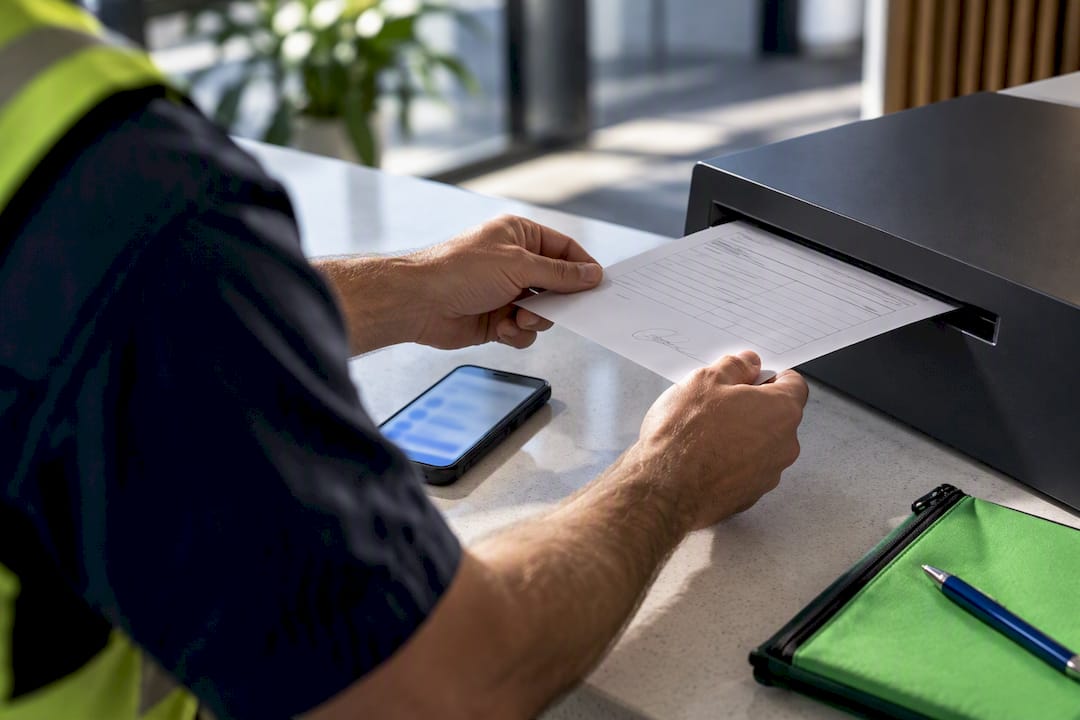
Cloud print brokers add another layer worth checking before you commit: does the platform integrate with your existing single sign-on, or does it require a separate login? A second password is where staff start finding workarounds, and workarounds are where security policies quietly fail. The tighter the integration between your cloud storage, your DMS, and your print platform, the less chance anyone reverts to emailing documents to themselves just to get a hard copy.
What are the environmental costs of mobile printing?
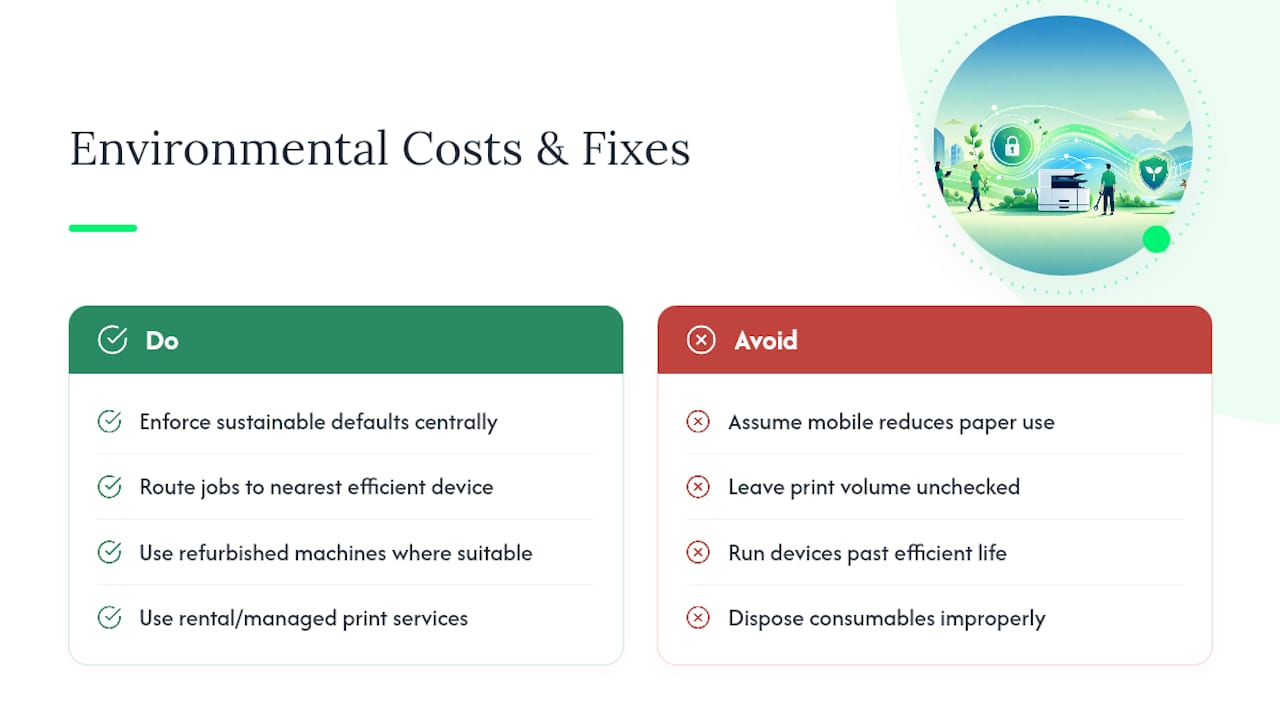
Mobile printing doesn’t inherently reduce paper use. It reduces friction, and reduced friction can just as easily mean more printing, not less, if nobody’s watching volume.
The upside is that mobile workflows make it easier to enforce sustainable defaults than paper-based ones ever were. Duplex printing, monochrome-by-default, and print quotas are all settings you configure once centrally and push to every device via MDM, rather than habits you have to police one desk at a time. A mobile-ready fleet also makes it simpler to route jobs to the nearest efficient device instead of a single high-volume printer running constantly to cover an entire floor.
Consumables carry their own footprint. Toner cartridges and drums have a manufacturing and disposal cost regardless of whether the job came from a phone or a desktop, and running a device well past its efficient service life usually costs more in power and part failures than replacing it earlier would. This is where refurbished equipment earns a genuine second look: a well-reconditioned machine, sold through a program like Global Office Machines’ Green+ refurbished line, gives a business modern mobile-print capability without the manufacturing footprint of a brand-new unit.
Rental and managed print arrangements also tend to improve environmental outcomes indirectly, because a provider managing the fleet has a direct incentive to keep devices running efficiently, replace failing parts before they waste power, and recycle consumables through proper channels rather than leaving that decision to whichever office happens to notice the toner light.
Where rollouts actually go wrong
Most mobile print projects don’t fail on technology; they stall on the boring parts: a printer that won’t show up across VLANs, a certificate nobody trusted, a DNS record nobody published. Discovery and certificate trust cause more delay than any app compatibility issue.
The fix is usually procedural, not technical: publish the DNS-SD records before you touch devices, and get the certificate chain sorted before the pilot, not during it. That’s exactly where a dealer who’s configured this before earns their fee. Partnering with a specialist compresses a process that drags on for weeks of trial and error into a matter of days, because they’ve already seen the failure modes.
Get your mobile printing rollout right the first time
A practical alternative to muddling through a DIY rollout alone is a partner backed by national delivery, price matching, and a full lifecycle of sales, rental, repair, consumables and managed print support that most standalone IT teams can’t replicate in-house.
Whether you need a handful of mobile-ready MFPs for a hybrid sales team or a full fleet upgrade with secure release built in from day one, a specialist partner can scope a pilot, handle certificate and network setup, and keep consumables flowing once you’re live. Browse the current printer range or head to the main shop to request a site survey or quote for a managed print pilot.
Sources
-
HP Tech Takes: remote printing benefits and security guidance
-
How secure release printing keeps your documents private — Mopria blog
FAQ
How much does a mobile printer cost?
Mobile and portable printer pricing varies widely by device class and features, so Global Office Machines doesn’t publish a single fixed figure. Current pricing for portable and label printers is listed on the shop, and mobile-ready office MFPs are priced individually by model and specification.
How much do 1000 pages cost to print?
Per-page cost depends on consumable price, page yield, colour usage, and paper stock, so there’s no universal figure that applies to every device. The most reliable way to estimate it is dividing your toner or ink cost by its rated page yield, then checking that figure against your actual print volume through a managed print service or consumables review.
Which printer is best for mobile printing?
The best choice depends on the job: portable printers suit field staff, mobile receipt printers suit retail and events, and mobile-ready MFPs suit hybrid office teams who need full functionality plus AirPrint, Mopria, and secure-release support. Look for Mopria and AirPrint certification plus IPPS/TLS support as non-negotiable features regardless of device class.
What is the best printer for small businesses?
Small businesses generally get the most value from a mobile-ready MFP that combines printing, scanning, and copying with certified mobile support, rather than a single-function portable unit. Global Office Machines stocks a range of multifunction printers suited to different volume and budget levels, including refurbished Green+ options for businesses watching capital spend.
Do I need secure release printing for a small office?
Secure release matters most where confidential documents pass through shared printers, but even small offices benefit from it once more than a few people share a device. It holds jobs until the sender authenticates at the printer, which removes the risk of sensitive pages sitting in an output tray unattended.